 Deskbar
Deskbar for Windows 11
The taskbar for your virtual desktops.
Deskbar names Windows' own virtual desktops, colours them, and adds a floating bar that shows every desktop's windows at once. Click an icon to jump to that window from anywhere. Hold Win+Ctrl and tap Tab to switch.
Free download. One portable exe for Windows 11 on x64, from GitHub Releases. No installer and no admin rights.
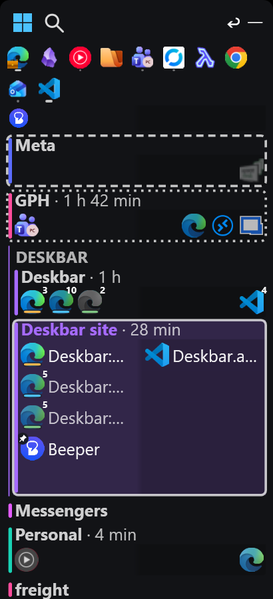
Every desktop, in one strip.
Windows has had virtual desktops for years, without names you can see or any memory of what goes where. Deskbar is a layer over them that adds what was missing.
-
All your windows, on every desktop
One row per workspace, each with its name above the icons of every window in it. Click an icon to jump to that window wherever it lives, and click it again to put it away. Drag it to another row to move the window there.
-
Real desktops, with names and colours
Every workspace is one of Windows' own virtual desktops. Quit Deskbar and your windows are still on their desktops, reachable through Task View exactly as before.
-
Each workspace keeps to itself
While you are in one workspace, its windows are the only ones on your taskbar and the only ones Alt+Tab walks through. A screen share of one workspace shows nothing of the others.
-
Switch the way Alt+Tab switches
Hold Win+Ctrl and tap Tab to walk your workspaces in most-recently-used order, then let go to land. One tap takes you back to wherever you just were, and focus lands on the window you were last using there, so you arrive typing.
-
It remembers where windows belong
Move a window to a workspace by hand and that is where the app goes next time. Workspaces survive reboots. Deskbar never launches anything and never changes a window's size or position on screen.
-
See what is waiting elsewhere
Rest on an icon and a card shows the window's title, its app and workspace, and for a window on another desktop, a picture of it at a quarter size.
-
Floating or docked
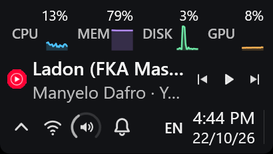
The bar floats where you drop it, docks to a screen edge, or straddles two screens. It carries your taskbar pins, the clock, volume and notifications, so Windows' own taskbar can stay on auto-hide.
-
Drive it from scripts
While it runs, Deskbar keeps a small command file that hands commands to the running copy, and nearly everything on the bar's menus has one. A coding agent that has just set up a git worktree can give it a workspace of its own and move the editor there:
& "$env:APPDATA\Deskbar\deskbar.cmd" move wt-login --create --title wt-login --wait 20 -
Nothing installed, nothing sent
One exe and no installer. Deskbar writes nothing outside your own user profile, and its only network traffic is the check for a newer release on GitHub. The automatic check can be switched off in Manage.
I built it for myself and it is on my screen all day, every day. A bar you look at all day has to be exactly right or it grates, so the tiny details get the attention.
One file. No installer.
Deskbar is one portable exe, published on GitHub with every release.
Get started
-
Download
Deskbar-<version>-win-x64.exefrom the latest release on GitHub. -
Put it somewhere permanent, such as
C:\Users\<you>\Programs\Deskbar\, not your Downloads folder. "Start with Windows" remembers where the exe lives. - Double-click it. Deskbar opens no window; it goes straight to the tray and puts the bar on screen.
- Left-click the tray icon to open Manage and create your first workspace.
The exe is not code-signed yet, so Windows SmartScreen warns the first time you run it. Choose More info, then Run anyway. Or build it yourself from the source.
Requirements
- Windows 11, build 22000 or newer
- x64
- Nothing else. The .NET runtime is bundled in the exe.
Windows only, by design. Deskbar is built on Windows' own virtual desktops and the taskbar's per-desktop filtering, so there is no macOS or Linux version waiting to be written.
Microsoft Store
Store listing in progress
Pay once, if you want the rest.
A free tier, a full trial, and one payment for Pro. No subscription.
Today every release is free, with everything switched on. The licence key and the checkout are still being built. When they arrive, this is how it will work.
Free
$0
- Keeps working after the trial, for as long as you like.
- Which features stay in the free tier is still being settled.
14-day trial
Every feature
- 14 days from the first run, with nothing held back.
- No account and no email address.
- When it ends, Deskbar drops to the free tier. Nothing you set up is deleted, and it comes back the moment you enter a key.
Deskbar Pro
$19 once
- Every 2.x update included.
- Licensed to you: one person, on any number of your own computers.
- The key is checked offline. Nothing phones home.
- Paddle will run the checkout and handle VAT and sales tax.
Read every line of it.
The code is public on GitHub under the PolyForm Strict License 1.0.0. You may read it, build it and run it for noncommercial purposes, so you can check for yourself what it does and that it sends nothing. You may not distribute it or publish changed versions. Contributions are welcome under the extra permission in the repository's CONTRIBUTING.md. This is source-available software, not open source.